Web Accessibility Checklist for Everyday Projects
Make navigation, content and controls usable for more people.
A small company is refreshing an informational website and its interactive pricing calculator. Accessibility is a recurring design and testing activity, not a setting added just before release. The following guide treats the problem as a working decision: what needs to happen, what the technology actually provides, and which observations can support a choice.
The browser receives a document, associated resources and, depending on the application, executable client-side code. Server behavior and client behavior should be checked independently. A site can return valid HTML but be hard to navigate, or have an attractive interface that fails when the network is interrupted. Testing the actual interactions people need is more revealing than treating a visual match as sufficient.
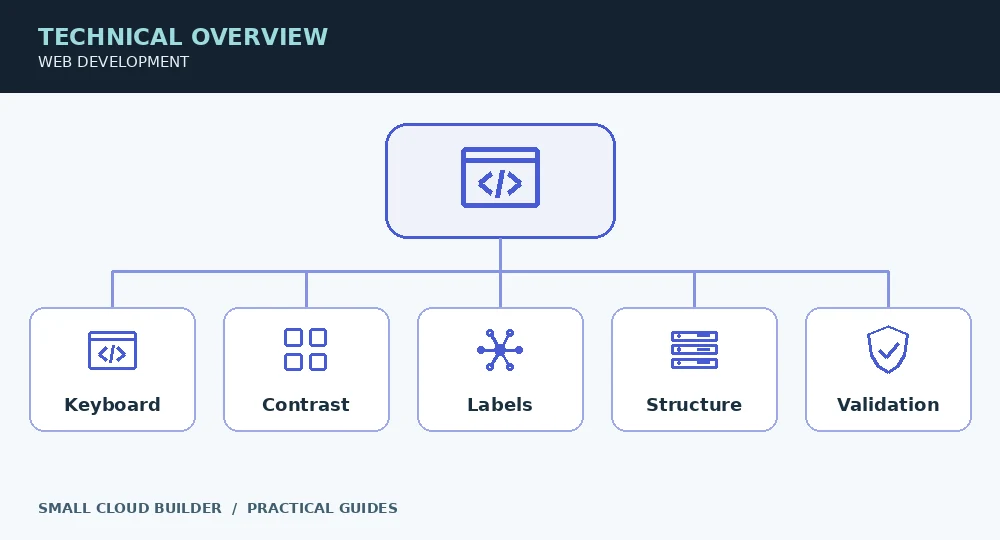
Keyboard
Verify that all controls are reachable, focus is visible and modal dialogs do not trap people unexpectedly.
An implementation plan should state who owns keyboard once the work is complete. Navigate a complete form without a mouse, including error correction. Ask the person responsible for ongoing administration to take part in verifying the result, rather than handing them an unfamiliar setup at the end. They need to know where to find the relevant configuration, what a normal result looks like and what to do if it changes unexpectedly. Where two roles share responsibility, document the handoff. In a small organization, clear ownership and a repeatable check often prevent problems that an additional piece of software would merely make more difficult to investigate.
Record a failure before changing several settings at once. A clear observation made under known conditions makes troubleshooting much easier. With multiple simultaneous changes, it may become difficult to tell which action corrected the issue or whether it merely hid the symptom.
Contrast
Check text and interactive states against backgrounds, including hover and disabled appearance.
When validation fails, a red border alone does not explain the problem to someone who cannot distinguish the color or perceive the field's label. A clear textual error associated with the appropriate control is more useful. Moving focus deliberately to a relevant error summary can make a long form easier to correct.
In the planning stage, avoid treating contrast as a feature checkbox. Check links and labels when viewed at large text size. This gives the team a real starting point for comparison. Note how much setup and administrative effort the task requires, and whether the result can be repeated without relying on special access unavailable to ordinary users. If the proposed system changes the way a person completes their work, try the new process from that role's perspective as well. The aim is to establish what is possible with the configuration you will actually operate, rather than what is possible in an ideal demonstration.
When comparing choices, include the ordinary maintenance procedure as a requirement. If the team can only demonstrate a capability with extensive assistance, plan for that dependency rather than assuming the same results will be available without it.
Labels
Associate inputs with visible labels and provide helpful error messages near the affected fields.
Separate the initial selection from the evidence that supports it. Review text contrast on colored status and action backgrounds. The test should be small enough that a mistake is reversible and sufficiently representative that the result can guide a decision. Record what direct observation establishes and what remains an assumption. For example, one successful run says little about unusual inputs or a much higher level of demand. Use the first observation to decide what another test ought to cover. As work moves from evaluation into routine operation, revisit the assumptions about labels rather than leaving them frozen in the original proposal.
If the exercise requires temporary privileges or a special configuration, separate those from what the finished system actually needs. Remove temporary access when it is no longer required and document the configuration that the team expects to keep.
For another perspective on the same infrastructure or workflow decision, see How to Use Git for Website Releases. Compare the requirements it identifies with the constraints in your own environment.
Structure
Use meaningful headings, lists, landmarks and appropriate image alternatives.
A written requirement is most valuable when it can be tested without guessing what the author meant. Confirm that image alternatives communicate useful information without repetitive decorative wording. Establish a meaningful threshold for the result, whether that is correctness, usable response time, preservation of records or successful access by the intended person. Do not silently revise the threshold after seeing a disappointing outcome; instead, decide whether the business requirement itself has changed. Even a modest record of test results helps a small team make later decisions about structure without relying on a recollection of which option looked most convincing during the initial evaluation.
Treat a successful result as evidence for the particular situation that was tested. Changes to the environment can alter that behavior. A lightweight regression check after important changes makes it easier to identify when a previously dependable assumption no longer holds.
Validation
Combine automated checks with manual keyboard navigation, zoom and screen-reader review.
Separate the initial selection from the evidence that supports it. Inspect keyboard focus order for controls that appear after a selection. The test should be small enough that a mistake is reversible and sufficiently representative that the result can guide a decision. Record what direct observation establishes and what remains an assumption. For example, one successful run says little about unusual inputs or a much higher level of demand. Use the first observation to decide what another test ought to cover. As work moves from evaluation into routine operation, revisit the assumptions about validation rather than leaving them frozen in the original proposal.
There is no need for a large spreadsheet if a short set of observations is sufficient. The purpose is to make the decision traceable, distinguish known limitations from speculation and preserve enough information to investigate a reported problem later.
Putting the findings to work
A useful development release has a reproducible build and an environment in which changes can be checked before normal users receive them. Keep versioned source material and expected test cases, but avoid putting private configuration or data exports in public artifacts. When behavior changes, compare the deployed version with the source version and the relevant environment settings.
For a short review before making the decision, return to the concrete checks from the guide:
- Navigate a complete form without a mouse, including error correction.
- Check links and labels when viewed at large text size.
- Review text contrast on colored status and action backgrounds.
- Confirm that image alternatives communicate useful information without repetitive decorative wording.
- Inspect keyboard focus order for controls that appear after a selection.
Accessibility is a recurring design and testing activity, not a setting added just before release. Keep the key observations available to the people responsible for the system, with enough detail to revisit the decision when the workload, tools or business requirements change.
Related guide: How to Migrate an iPhone App to Android. Revisit the early mobile-porting challenge and plan a modern cross-platform migration.
Related guide: Cloud Migration Checklist for Existing Applications. Move applications with an inventory, test environment, cutover and rollback sequence.